
Creating your own website gives you the opportunity for your ideas, services, and products to be seen on a global scale. No doubt you’ve spent countless hours researching how to turn your ideas for a business, blog, or other passion project into a cohesive website for the world to see. But the thought of creating it yourself has you at a standstill and overwhelmed.
All of this can be daunting, but it really doesn’t have to be.
Want to listen to this blog post instead of reading it?
Hi, I’m Lisa Kuhn and I’ve been a web designer for over 25 years. I’ll give you my inside tips and best practices for how you can create your website. I’ll be covering the following:
- Website Content: What Do You Have to Say?
- Tips for Creating Your Website Content
- What Content Do You Need?
- Web Hosting: Where Your Content Lives Online
- Domain Registration: How to Secure Your Domain Name
- How to Obtain a Domain Name
- Best Practices for Domain Names
- WordPress: Powering 43% of the Internet
- Installing WordPress
- How Do You Choose a WordPress Theme?
- The Avada Theme: The #1 Selling WordPress Theme with 1 Million+ Customers
- Create WordPress Pages & Posts
- Next Steps: Free WordPress eCourse

1) Website Content: What Do You Have to Say?
There are two main pieces to your website – your content and the technical aspects of your website.
Before you start getting overly concerned about all of the technical stuff, you need to decide on what you have to say. You’ll want people to understand who you are and what you have to offer.
Content about yourself or your business is not the easiest thing in the world to write. But I have some tips below on how you can get started and what content you’ll need for your website.
Tips for Creating Your Website Content:
- If a blank page and a blinking cursor is overwhelming for you, try making things a little easier on yourself. Open a Google doc on your phone and use the voice-to-text feature to dictate your content. It can be much easier to talk it out than type it out. Start with this and edit it from there on your phone or computer.
- Get some structure with what you want to say in an outline or bulleted list.
What Content Do You Need?
Company Website:
- Suggested Pages: Home, About Us, Services or Product, Contact page
- Optional blog
- A Home Page content:
- Note: “Above the fold” is a newspaper reference. When we’re talking about screens, it’s what you see before you scroll.
- Hero image at the top “above the fold”
- Call to Action (CTA) – Subscribe and download an ebook (i.e. a lead magnet) or link to contact form or page also “above the fold”
- Paragraph about you or your company with button link to About page
- Three columns about Services or Products
- CTA at the bottom linking to Contact Us page
- Footer – main menu, contact information
Personal Blog Website:
- Suggested Pages: Home, About, Blog, Newsletter Signup, Resources (optional), Contact
- Home Page
- Photo of yourself “above the fold”
- To the side of the photo, intro text with button linking to About page or other call to action
- Newsletter sign up
- Latest Blog Post (3 or 4 columns)
- “As Seen On” with logos – if you’ve been published by other websites
- Footer – main menu, contact information
Now that you have some understanding of your content, let’s talk about where it’s going to live.
2) Web Hosting: Where Your Content Lives Online
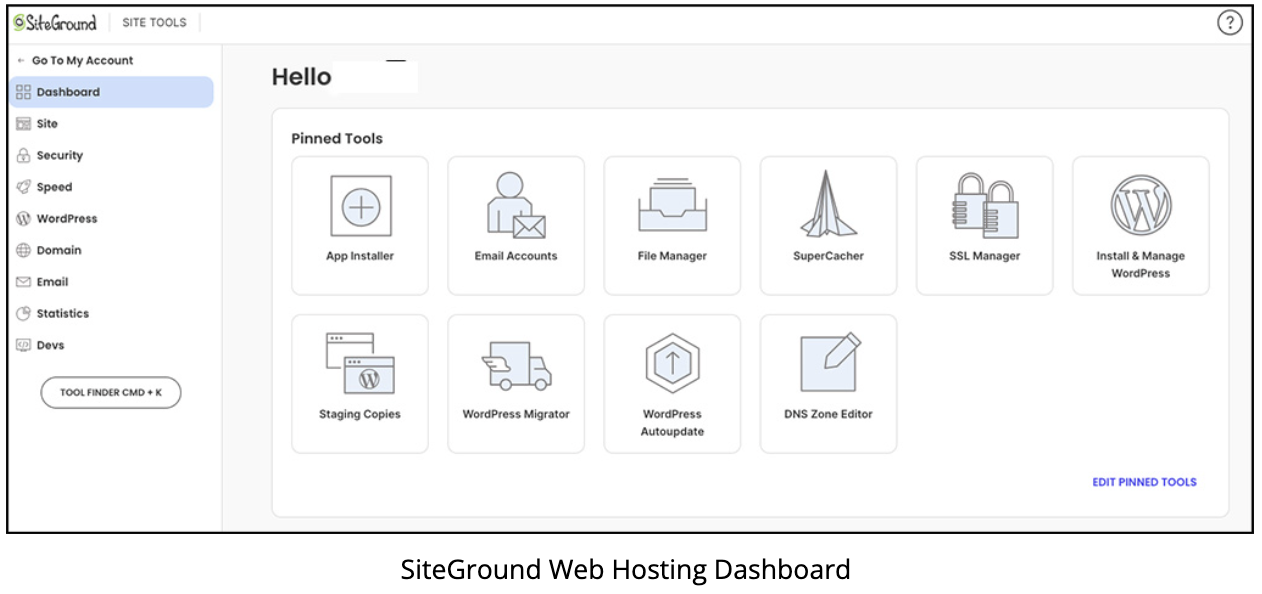
In order for your website to be seen on the internet, your website files will need to be uploaded to a web server. By setting up an account with a web hosting company, you can store your files and content on their web servers, which are large scale computers.
Not all web hosting is created equal. Some web hosting companies may entice you with a cheap introductory price, but you’ll end up paying in the end with potentially slower website speed, your time and frustration with their web hosting control panel, and being nickel and dimed for additional costs that should be included, like email hosting and an SSL certificate for your website (which adds a secure transfer connection for your website).
I’ve been using SiteGround for my web hosting for several years. It includes everything I need – website and email hosting, daily backups of my website with one-click restore, CDN (content delivery network to speed up my website), and a free SSL certificate that makes my site more secure with encrypted data transfer, plus helpful technical support. GoDaddy and many others don’t offer all of this in their basic price.
Web hosting also offers an easy installation of the most popular content management system (CMS) around – WordPress – which runs over 43% of the internet. More on WordPress below.
3) Domain Registration: How to Secure Your Domain Name
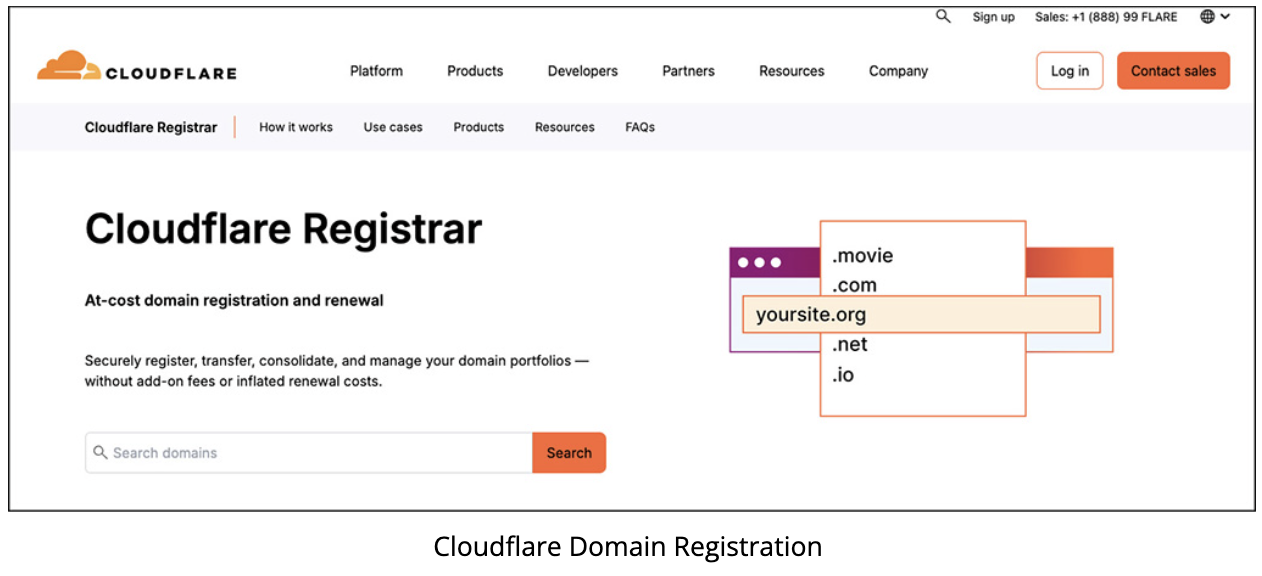
A domain name is the user-friendly name that we type into a browser to view someone’s website, oftentimes ending in .com – For example, one of my domain names is LearnWPFast.com.
How to Obtain a Domain Name:
- The first thing you need to do is to check if your domain name has been registered to anyone else.
- Some popular domain registrars are GoDaddy, Siteground, Network Solutions, and CloudFlare.
- CloudFlare is the most cost effective at $10.46 annually.
- By comparison, the first year with GoDaddy is $12.99, then renews at $22.99 annually.
- If your desired domain is available, you can register it with the domain registrar for a year or more.
- There is an annual fee to keep access to your domain name.
- Make sure to keep your payment method up to date so that there are no issues when it renews.
- If you don’t keep your domain registration paid, you could permanently lose access to your domain if someone else registers it.
Best Practices for Domain Names:
- Remember, domain names aren’t used just for your website, they’re also used for your branded email addresses.
- Generally, it’s best practice to register a .com for US and other countries. People outside of the US might want to use their county’s suffix such as .co.uk for the United Kingdom.
- Avoid long domain names (which would also be a bit more difficult when used in email addresses).
- Avoid dashes
OK, on to the content management system… WordPress!
4) WordPress: Powering 43% of the Internet
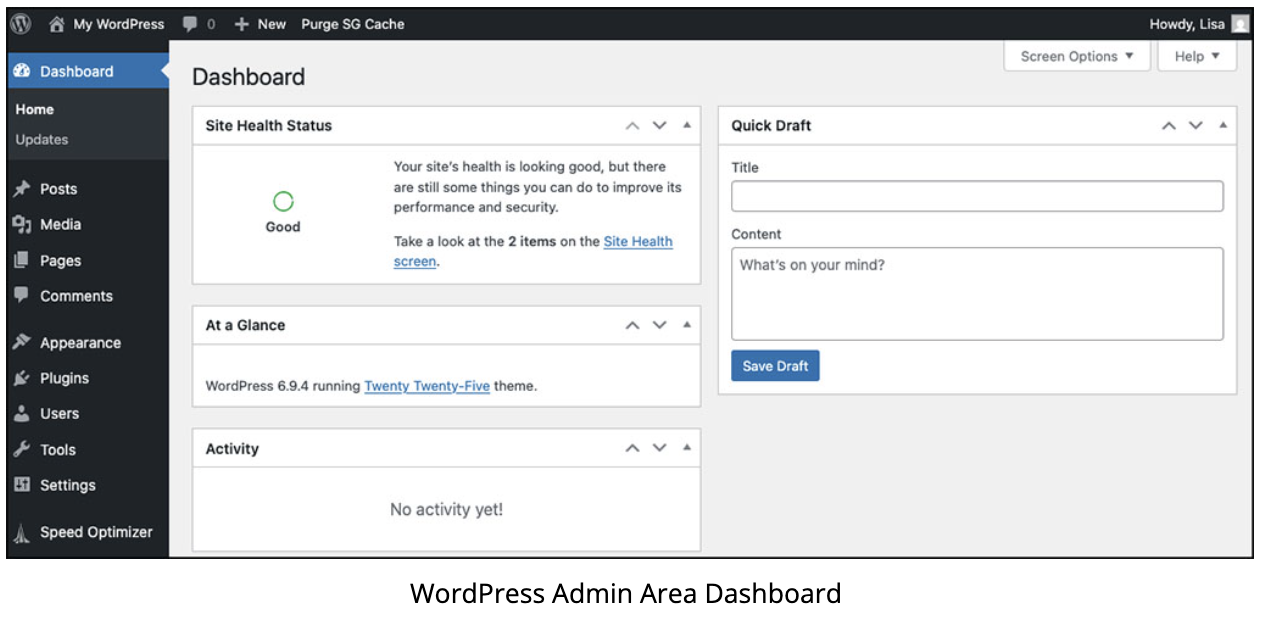
You’ll need a way to create and update your pages and posts for your website. I recommend WordPress. It’s a very popular content management system that includes the frontend of the website (what we see online) and the backend logged in admin area that is only accessible to the owner of the website and whoever they give access to. The admin area is where you can change settings for the website like the main menu and manage your pages and posts. You can learn more about WordPress by signing up for my free WordPress ecourse.
Installing WordPress
Most web hosting allows for a one-click installation of WordPress. A really nice feature of SiteGround is that it allows you to use a temporary domain if you’re not ready to register a domain, which is really handy for getting started quickly.
You’ll also set up your username for WordPress. It’s best practice to not use your name or your email address as your username since that’s too easy to guess.
After a few clicks, you’ll have an installed WordPress website and can head into the WordPress admin area to start setting up your site!
How Do You Choose a WordPress Theme?
Every installation of WordPress needs a theme. Gone are the days of just having a title and big text area to create a WordPress post where you can only left, right, and center align images.
Themes today allow for customized layouts to highlight your content. Given these powerful options, you want a WordPress page builder (i.e. editor) that is visually easy to see and intuitive to use in order to create your post or page.
What to Look for When Choosing a Theme?
Two of the most important things to look for when choosing a WordPress theme:
- When was the theme last updated by the developer?
- What page builder or editor does it use?
1. When was the theme last updated by the developer?
You want to know if the theme developer is still actively developing and supporting the theme so that you don’t run into compatibility issues in the future.
Two main places to find WordPress themes are WordPress.org/themes and ThemeForest.net. On the theme detail page on both of these sites, look in the right column for the “Last updated” date.
If the theme hasn’t been updated for more than a year, you don’t want to use that theme. You’ll run into problems with the theme not being compatible with the latest versions of WordPress and other plugins.
2. What page builder or editor does it use?
Some options include:
- The WordPress Gutenberg editor (also known as the WordPress Block Editor) – developed by WordPress it’s built in and installed with WordPress
- Elementor Website Builder Plugin – included with many free and paid WordPress themes
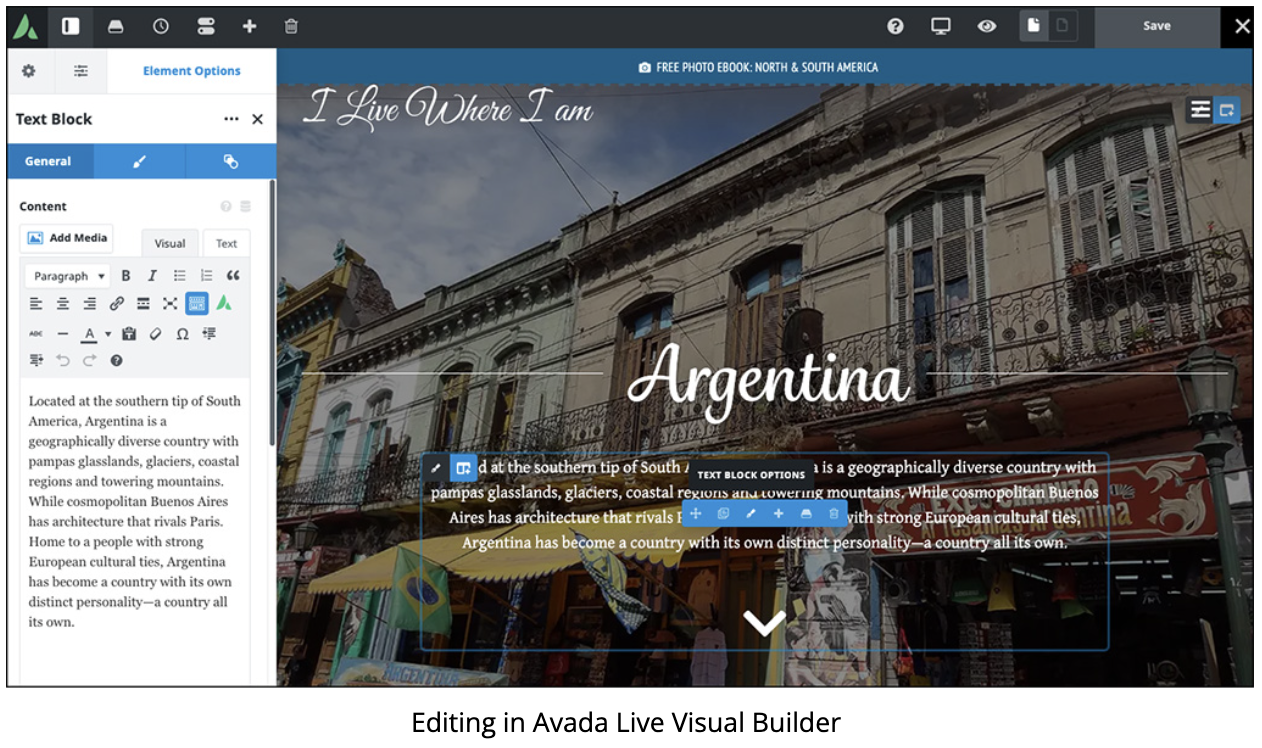
- Avada Live Visual Builder – A free builder only with the Avada theme. It includes a live visual frontend builder and a barebones backend builder.
My Opinion:
- I find the WordPress Block Editor just isn’t intuitive and is difficult to understand how to build your page.
- Elementor is slightly more intuitive with how it’s laid out,
- but I prefer the Avada Live Visual Builder in the Avada theme.
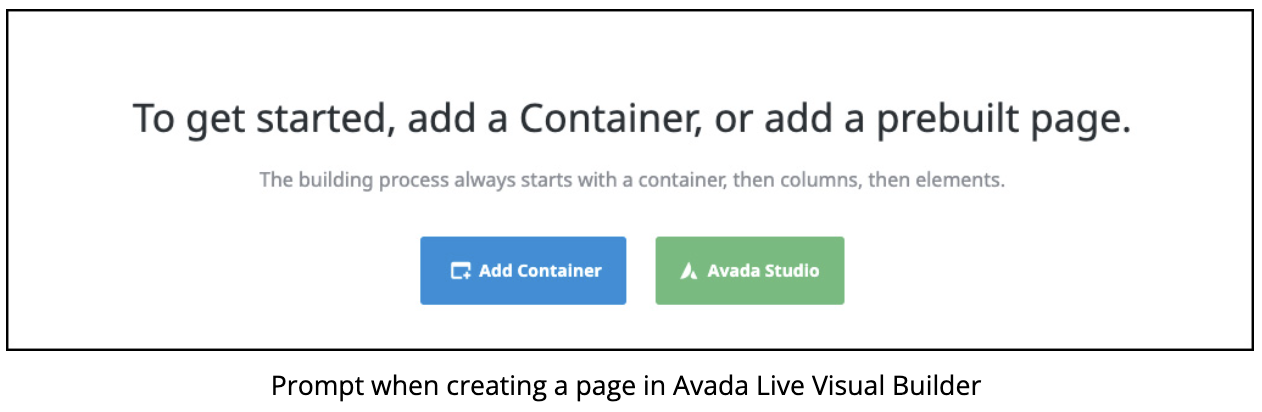
With Avada, to start your page:
- It clearly prompts you to add a container or add a prebuilt page or section.
- When hovering over the container, it has bright blue outlines of the container and columns and a blue button to add an element like an image or text area.
- No light grey outlines that may or may not show up well on your screen.
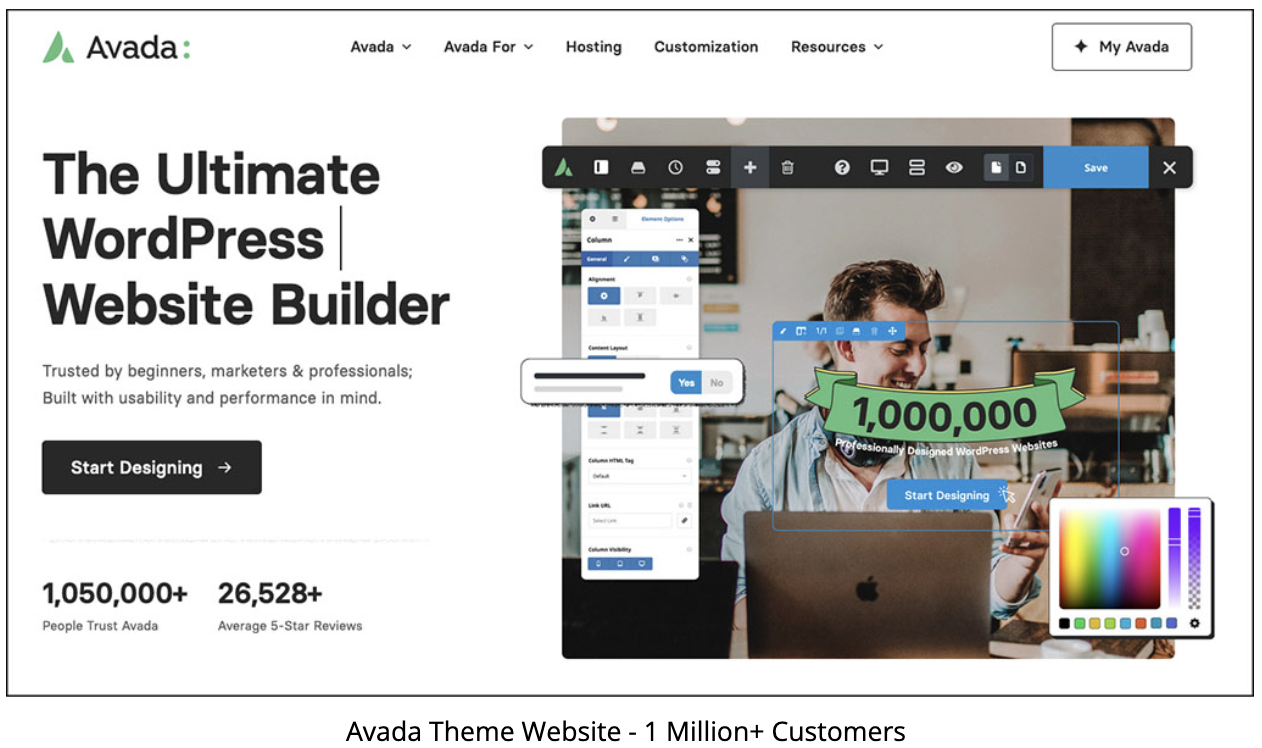
The Avada Theme: The #1 Selling WordPress Theme with 1 Million+ Customers
My preferred WordPress theme is Avada. I’ve worked with it for over 9 years. It has more than 1 million sales on ThemeForest and is completely customizable for your design.
The great thing about Avada is that it has a one-time cost of $69 as opposed to an annual subscription of $89 per year with Divi (or $249 lifetime). That $69 for Avada includes lifetime updates to their theme with no additional cost ever.
Avada includes functionality that you would normally need to install an additional plug-in for things like website forms and cookie notification. In total there are 78 design elements and 36 WooCommerce store elements to add to your pages.
Avada includes over 100 prebuilt websites that you can import into your WordPress installation or mix and match different sections from different prebuilt websites to get the content structure that you want.
Avada also has a tremendous amount of customization that you can do like applying different page layouts throughout the site and unique headers on different pages if desired.
Let’s talk about creating pages and posts next.
5) Create WordPress Pages & Posts
The basis for your website will be WordPress pages and / or posts. The difference being that pages are stand alone, individual web pages like your home page, about page, and contact page.
The unique thing about WordPress posts is that they can be categorized. You can then display that category of posts on an area or page of your website. For example, on my travel website, I have a link in the main menu that says Learn Photography. Following that link will take you to a web page that displays my photography posts. Photography being one of my post categories.
Once you have your basic pages created like Home, About, Services / Product, Blog, Contact Pages, you can create a main menu at the top of your website to navigate between the pages.
Next Steps: Free WordPress eCourse
This is just the beginning of getting your website started. There are many more settings to configure and best practices to learn. Like how to set a home page as your default page for your website. How to get the “s” in https for a secure website connection.
I’ll get you started with WordPress in my FREE WordPress ecourse on LearnWPFast.com – Just stop by my site and register for this free course to start learning how to get your website online!